How to / Share or move your tree
How to prepare a GEDCOM for Ancestry, MyHeritage, FamilySearch or GEDmatch
Review dated compatibility warnings, protect living people's details, choose a supported GEDCOM version, and test an import before moving your tree.
Intermediate30 minutesChecked against the tools on 6 Sep 2026Uses Dialect Report, Living Person Privatiser, Format Converter and GEDCOM Validator
prepare-a-gedcom-for-ancestry-myheritage-familysearch-gedmatch.md, 10,460 characters. The same bytes answer at /how-to/prepare-a-gedcom-for-ancestry-myheritage-familysearch-gedmatch.md.
You are about to upload your tree. Keep an untouched local copy and use a small test tree to check which names, relationships, citations and media references survive your chosen import route. A successful upload does not establish a lossless round trip.
This article checks the local tools as of 6 September 2026. Dialect Report uses knowledge base 2026-09-02; its destination cards mix official documentation, dated user reports and conservative assumptions. We did not perform fresh imports into those destinations for this check. Read each rule's source, date and confidence, then check the destination's current instructions.
What causes it
Import routes can support different subsets of GEDCOM. Check four areas before moving a tree.
Custom tags. An underscore can identify a GEDCOM extension, but it does not make a tag valid in any position or guarantee support elsewhere. Check tags carrying research data, identifiers, relationship qualifiers and media metadata.
Notes, sources and media. The FamilySearch profile cites limits on copying notes, sources and media from a GEDCOM upload into Family Tree. Other routes have different limits. A standard .ged file contains media references, not the image files themselves; keep those files and test the destination's media workflow.
Living people. Review who can see an upload, including tree visibility and access settings. The GEDmatch profile warns of public visibility and uncertain living-person filtering. Redact before uploading; do not rely on a destination to remove private details.
The round trip. Distinguish an uploaded FamilySearch Genealogies/Pedigree Resource File tree from the shared Family Tree. A website's lack of a direct GEDCOM download does not rule out partner-software retrieval, but neither route replaces your original backup.
Where you are sending it

Diagram source
flowchart TD
  START["Keep the original GEDCOM and media files"] --> D["Check the exact destination, import route and dated profile"]
  D --> S["Extract the intended branch if needed"]
  S --> PRIV["Review living people, redact, verify and inspect the download"]
  PRIV --> VER{"Does the destination support this GEDCOM version?"}
  VER -- "yes" --> VAL["Validate the final downloadable file"]
  VER -- "no" --> CONV["Convert to a supported version and inspect losses"]
  CONV --> VAL
  VAL --> TEST["Test a synthetic or deceased-only branch"]
  TEST --> CHECK["Inspect the imported records and an export if available"]
  CHECK --> UP["Upload the reviewed sharing copy after accepting any losses"]
The fix
- Open Dialect Report and drop the file. Read Producer first: it names the program that wrote the file, with a confidence and the evidence, for example
Ahnenblatt (98%)fromHEAD.SOUR AHN (Ahnenblatt)and the signature tags_NAVM,_NAVI,_HOME. - Read File facts: individuals, families, distinct custom tags and their line count, and the
NOTE / SOUR / OBJEcounts. Those last three are the numbers most at risk.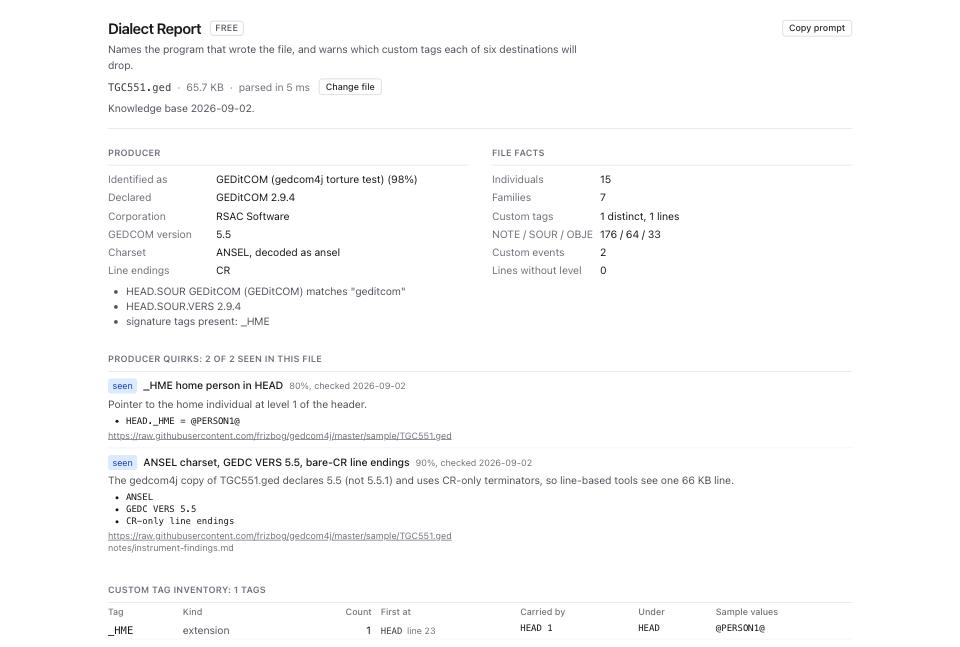
- Read Custom tag inventory. Seven columns: Tag, Kind, Count, First at, Carried by, Under, Sample values. Look at the sample values. A tag carrying real data you care about is a tag you need to check on every destination card.
- Scroll to Destination compatibility and find your destination. Six cards: FamilySearch Family Tree, Ancestry.com, MyHeritage / Family Tree Builder, Gramps 6.0, WikiTree (GEDCOMpare) and GEDmatch.
- Read the warnings on your card. Each carries a severity label (
dropped,rewritten,limit,note), a count, rule id, confidence, check date and sources. These labels describe profile predictions. A confidence value is not a measured probability of successful import; inspect the rationale, especially for low-confidence rules. - Review privacy even for a private destination. Follow how to remove living people before sharing your family tree. Keep the surname starts checked. Choose what you intend to disclose, build, resolve verification failures and inspect the downloaded copy. A scan pass does not prove anonymity. Keep the classification CSV private.
- Check the destination's supported version for your import route. If conversion is needed, open Format Converter, choose GEDCOM 7.0 or GEDCOM 5.5.1, review losses and download the selected format. See how to convert GEDCOM 5.5.1 to 7.0.
- Open GEDCOM Validator on the final download, after any conversion. Fix blocking errors and review relevant warnings. Reload each tool's output before the next step so you do not inspect an earlier copy.
- Use a
.gedfilename for GEDmatch and check the current upload form's size, naming and privacy requirements. - Test a small synthetic or deceased-only branch before the main upload. Inspect imported records and an exported copy where the destination offers one. Keep your original GEDCOM, media and the reviewed sharing copy separate.
Destination notes worth knowing before you click upload
FamilySearch Family Tree. The profile describes uploading to Pedigree Resource File and then copying selected data into Family Tree. Its cited help page says notes, sources and media cannot transfer through that copying step. Check the current route; do not treat this as a claim about all partner-software transfers or retrieval from FamilySearch.
Ancestry.com. The profile warns about _UID spelling/length changes, foreign custom tags and media handling. Some evidence comes from particular sync or export tests. Test your own import route before relying on full identifier preservation or citation relinking. Uploading a GEDCOM does not upload the local image files it references.
MyHeritage and Family Tree Builder. The combined card includes an older Family Tree Builder desktop dialog that offered conversion of unknown tags to notes. That does not establish current MyHeritage website controls or current desktop behavior. Check the product and version named by the source.
GEDmatch. The profile warns of public trees and uses birth-without-death counts as a risk indicator. It does not run GEDmatch's living-person filter. Redact and inspect your copy before upload, and confirm current visibility terms. Treat custom-tag and attachment warnings as reasons to test, not proof that GEDmatch discards private data.
WikiTree. The dated profile describes person-by-person GEDCOMpare review and a 5,000-person limit. Confirm current limits and review requirements before preparing a large upload.
Gramps. The profile records observations from Gramps 6.0.8, including custom-tag conversion and note rewrapping. Those results describe that tested version and importer. Check version and add-ons when handling GEDCOM 7 or relying on machine-readable determination notes.
What to check when it worked
- Every warning on your destination card is one you have read and accepted.
- The privatised file reports
Verify: pass., and your manual review found no identifiers you intended to remove. Review retained family links too. - GEDCOM Validator reports 0 errors on the file you upload.
- In the test upload, check accented names, notes, citations, media references and relationships. Use a synthetic living-person record to test visibility without exposing a relative.
- If export is available, compare it with the input in GEDCOM Viewer, Dialect Report and your genealogy program. Counts alone cannot establish that values and relationships survived.
What to do when it did not
The upload was rejected with no explanation. Run File Inspector and GEDCOM Validator. A structural fault stops a strict importer at the line it sits on. See how to fix a GEDCOM file that will not open.
The site imported half your tree. Look for a size or people cap on the destination card, and for a duplicate-xref or missing-head finding in File Inspector.
Names arrived garbled. The site read your charset differently from your desktop program. Run Encoding Repair and upload the corrected UTF-8 file. See how to fix garbled characters and accents.
A custom tag you need was dropped. Preserve its original value and meaning in your backup. Where the format permits it, a supported standard field or note may offer a fallback. Test that mapping on the destination; even a standard second NAME with TYPE married may not survive a particular importer.
The tree is too large. Send one branch instead. Subtree Extractor writes a standalone file where every pointer resolves; see how to split one branch out of a large family tree.
A destination card contradicts what you observed. Every rule prints its check date and its sources. Sites change. Read the sources, then trust what your own round trip showed.